
Managing access to your Orbify workspace is crucial for maintaining security and ensuring that only the right people have the appropriate level of access. Whether a team member has left the organization, changed roles, or no longer needs access, revoking user access is a simple process that administrators can perform quickly.
Step-by-Step: Revoking a User’s Access
Go to the User Section
Start by navigating to the Users section from the sidebar of your Orbify admin dashboard. This section lists all active members of your workspace.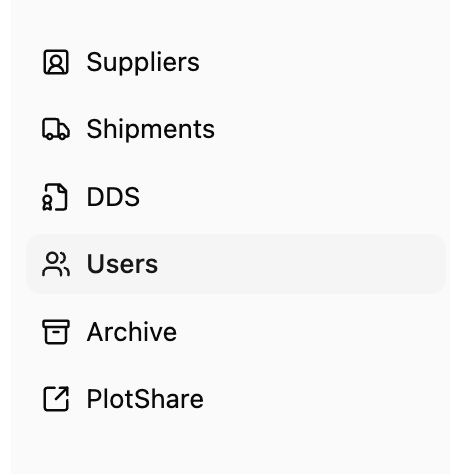
Locate the User
Scroll through the list or use the search function to find the email address of the colleague whose access you wish to revoke.Open User Options
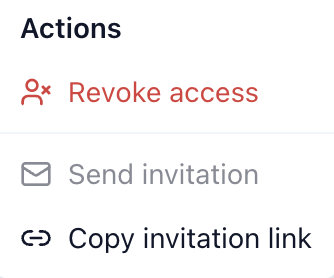
Once you’ve located the correct user, click on the three dots (⋮) next to their name or email. This opens a dropdown menu with administrative actions.
Click "Revoke Access"
From the dropdown menu, select “Revoke Access.” A confirmation prompt may appear to prevent accidental removals. Confirm the action to finalize the process.
Conclusion
Revoking a user’s access on Orbify is a straightforward but important administrative task that helps keep your workspace secure and well-managed. By regularly reviewing your user list and promptly removing access for those who no longer ne