
Giving your suppliers direct access to Orbify lets them contribute traceability data themselves, which cuts down on email back-and-forth and speeds up your EUDR due diligence. Adding a supplier user takes under a minute!
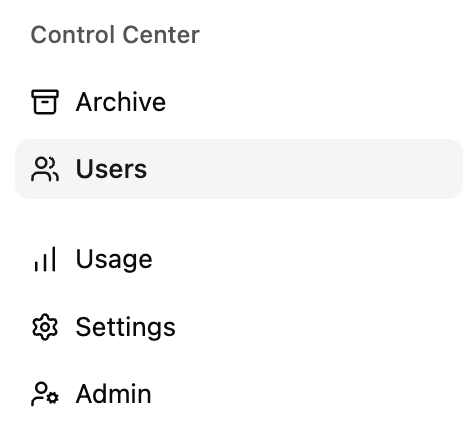
Step 1: Open the Users page. In the left sidebar, under Control Center, click Users. You’ll see everyone with access to your workspace, with their email, activation status, role, and supplier access. Internal team members show “User is not a supplier portal user” in the Access to suppliers column.
Step 2: Click “Add user”. Use the + Add user button in the top-right corner. The “Add user to the application” window opens.
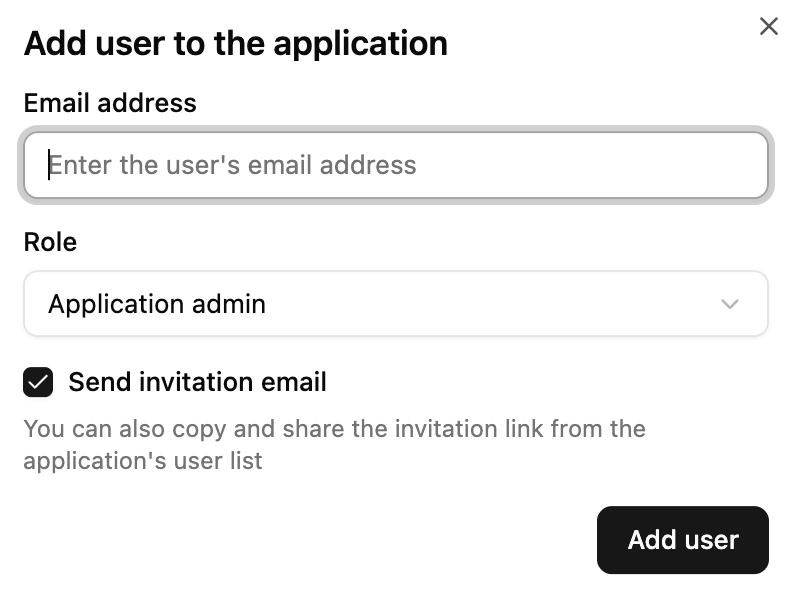
Step 3: Enter the supplier’s email address. Type the email of the person at your supplier who will manage their data in Orbify.
Step 4: Select the “Traceability supplier portal user” role. Open the Role dropdown, which defaults to Application admin, and choose Traceability supplier portal user. Take care here: leaving it on Application admin would give the person full access to your workspace.
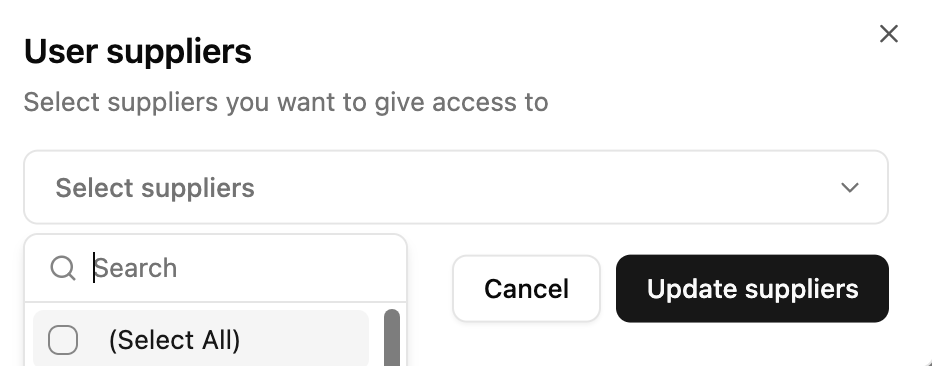
Step 5: Assign suppliers. Once you pick the supplier portal role, a new Select suppliers field appears. Open it and tick the supplier(s) this person should have access to. You can type in the search box to find a supplier quickly in a long list. If one person handles several entities, such as a trading company sourcing from multiple farms, select each of them, or use (Select All) if they should see every supplier. Click Update suppliers when you’re done. The user will only see data for the suppliers you assign.
Step 6: Send the invitation. Keep Send invitation email checked so the supplier receives their invite automatically. If you’d rather send it yourself, for example with a personal note, uncheck the box and copy the invitation link from the user list afterwards. Then click Add user.
Step 7: Confirm the invite was sent. The new user appears in the list as Inactive until they accept the invitation and set up their account. The Access to suppliers column shows which supplier(s) they’re linked to, so you can check the assignment at a glance.
Tip: Use Export users to download a full list of who has access, which is handy for periodic access reviews.